Guides for businesses and groups
Post news and offers
There are two kinds of post. An offer is a deal or something free: it goes to everyone who follows you, shows in your town’s offers for anyone browsing, and people nearby can hear about it. News is anything else worth knowing, like new stock, open late on Friday or live music: it goes to your followers and shows on your listing.
Posting is free. Every post is checked by the Front Street team before it goes live, usually within a few hours.
1. Start a post
Open your listing, tap Manage your listing, then Post news or an offer. Choose An offer or News: if there’s no deal in it, it’s news.
2. Write the headline
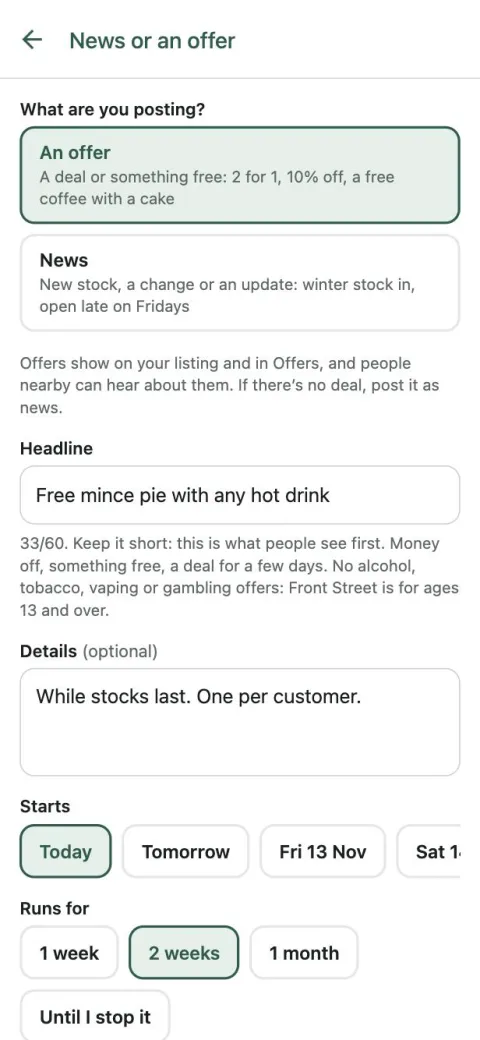
The Headline is what people see first, so keep it short and specific: “2 stotties for £2 before 10am” beats “Great deals this week”. You have 60 characters.
Use Details for the small print, like “While stocks last”.
A happy hour or a drinks deal? If you’re a pub, bar, restaurant or takeaway, or a grocer, switch on Includes alcohol and we’ll only show it to signed-in adults. We can’t take bottomless or all-you-can-drink deals, or offers on tobacco, vaping or gambling.
3. Choose when it runs
Pick a start date (up to six months ahead) and how long it runs: a week, two weeks, a month, or for an offer, Until I stop it.
An offer only on some days, like a curry night on Thursdays? Choose Only on certain days and tick them. It shows all week with its days on it, and “Today” on the day. News runs every day it’s up.
4. Tell your followers and check how it looks
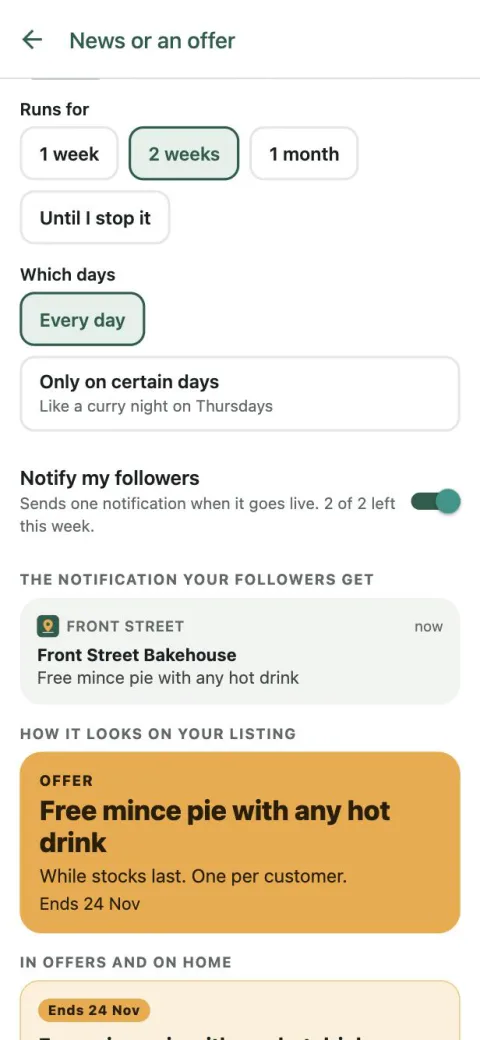
Leave Notify my followers on and they get one notification when it goes live. You can send two of these a week, so save them for your best posts: the post still shows in the app without one.
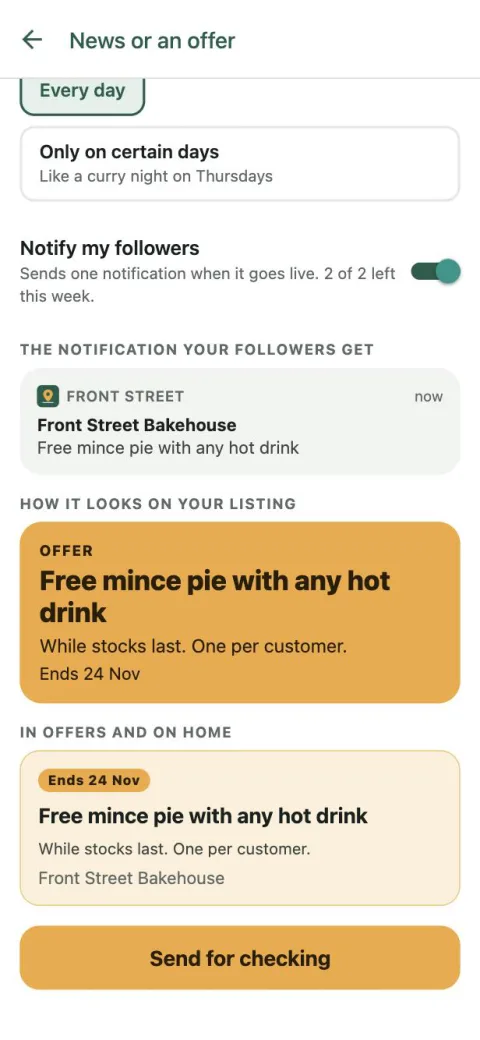
Underneath, you see the notification, how your post looks on your listing, and for an offer, its card in Offers and on Home. Offers are marigold and news is green, so people can tell them apart at a glance.
Tap Send for checking.
5. Change, pause or stop it
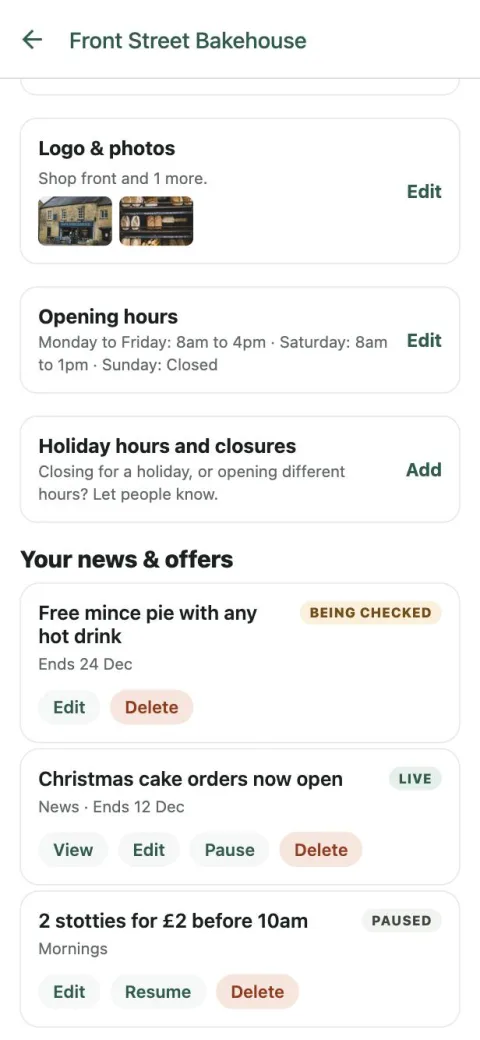
Your posts are listed under Your news & offers, news marked “News”, with where they’re at: Being checked, Live, Paused or Not approved.
Pause takes it down for a while (sold out, closed for the day) and Resume puts it back. Edit sends your changes for checking, and it’s hidden until they’re approved. Delete takes it off straight away.
If we can’t approve one, we say why. Tap Edit and send again to fix it.
6. See how it did
The morning after an offer ends, we tell you how it did. Try something, see what works, do more of it.