Guides for businesses and groups
Keep your listing up to date
Most people check Front Street to see whether you’re open, how to get in touch and what you’re like. Five minutes here saves them a wasted trip, and saves you a phone call.
You’ll need the app, signed in with the account that claimed your listing. Haven’t claimed it yet? Here’s how.
1. Open your listing’s page
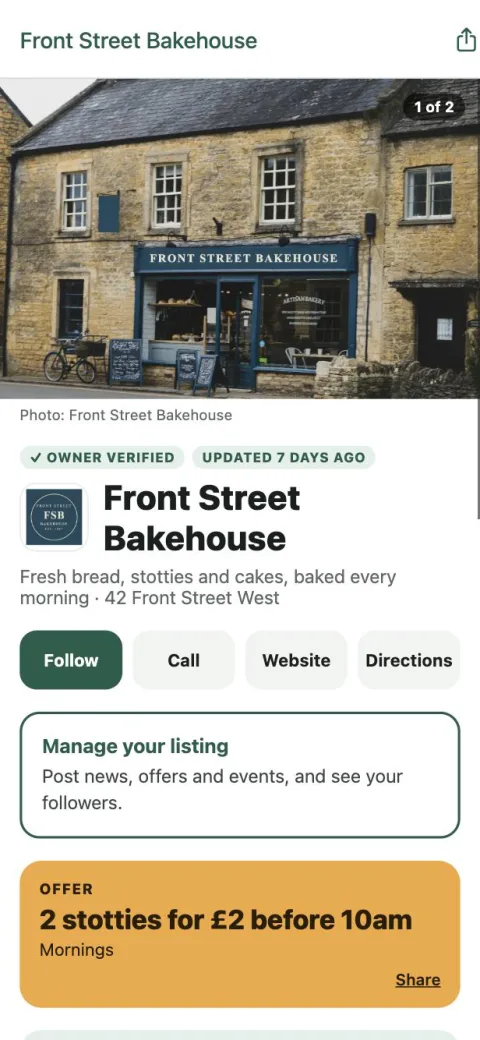
Find your listing in the app and tap Manage your listing. You can also get there from You, then Your listing.
2. See how it’s doing
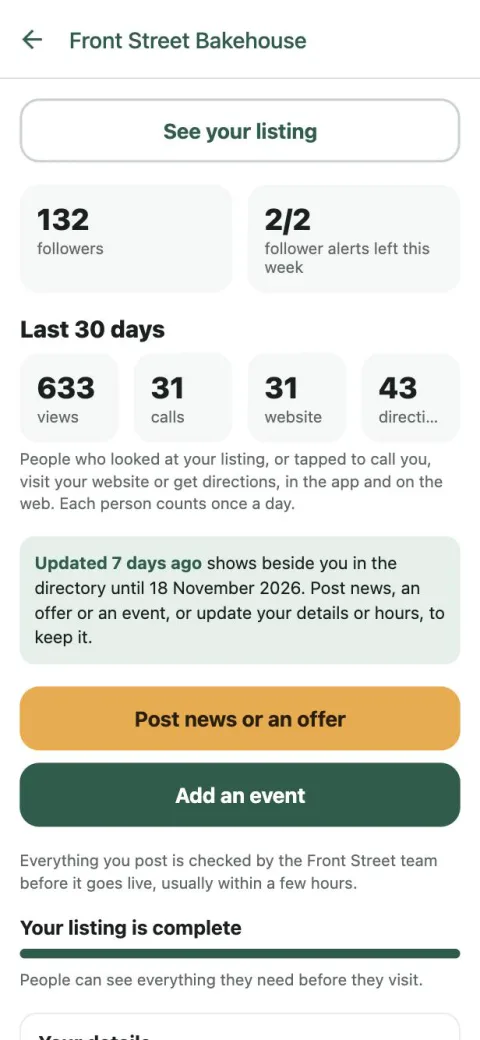
At the top: how many people follow you, and how many looked at your listing or tapped to call you, visit your website or get directions over the last 30 days. See your listing shows it as everyone else sees it.
Post news, an offer or an event, or update your details or hours, and Updated today shows beside you in the directory for the next fortnight. It tells people you’re active and your details are current.
The bar underneath shows how complete your listing is, and what to add next.
3. Your details
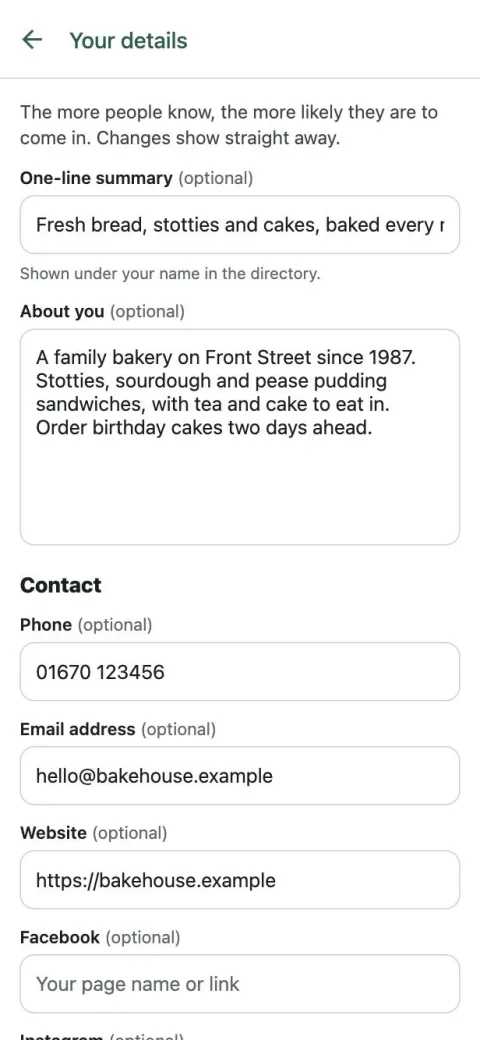
Tap Your details. Write a one-line summary (it shows under your name in the directory) and a few lines in About you: what you’re known for, what regulars order, who you’re for.
Add your phone, email, website, Facebook and Instagram. Under Where people find you, say whether you’re at your own premises, work from home (we never show a home address) or run classes and sessions at venues around town. Then tick what’s good to know (step-free access, dog friendly, takes cards and so on) and pick any other categories you should be found under. Tap Save: changes show straight away.
To change your name, address or main category, tap Ask us to change one of them at the foot of Details and we’ll do it for you.
4. Logo and photos
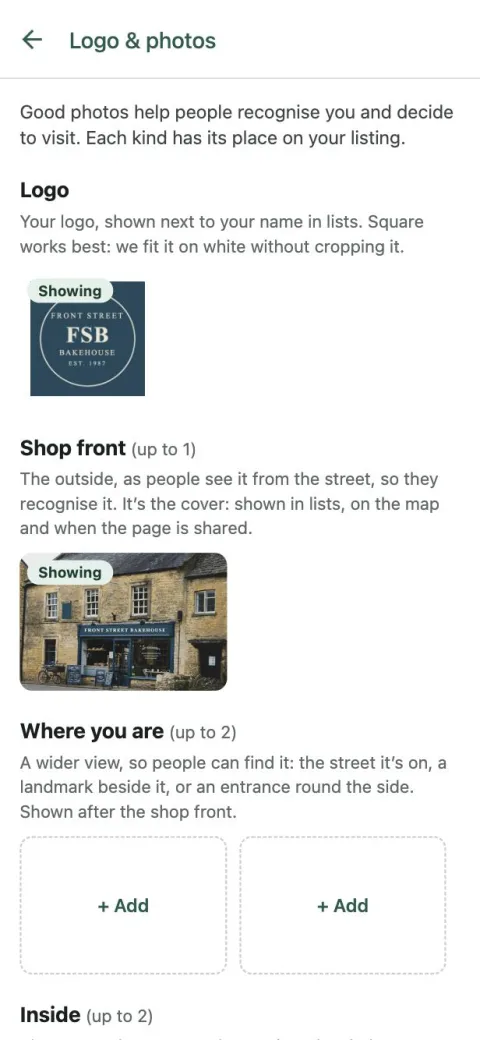
Tap Logo & photos. Your logo shows beside your name in lists, fitted on white without cropping: square works best, but any shape is fine.
Your shop front is the cover of your listing: what people see in lists, on the map and when someone shares you. Take it from across the road in daylight, with no people in it, so people recognise you from the street. Work from home? Add a photo of what you make or do instead: we never show your house.
There’s room for a couple more of where you are, inside and what you sell. Use photos you took or have permission to use, with no recognisable faces. We check each one before it shows, usually within a few hours.
5. Opening hours
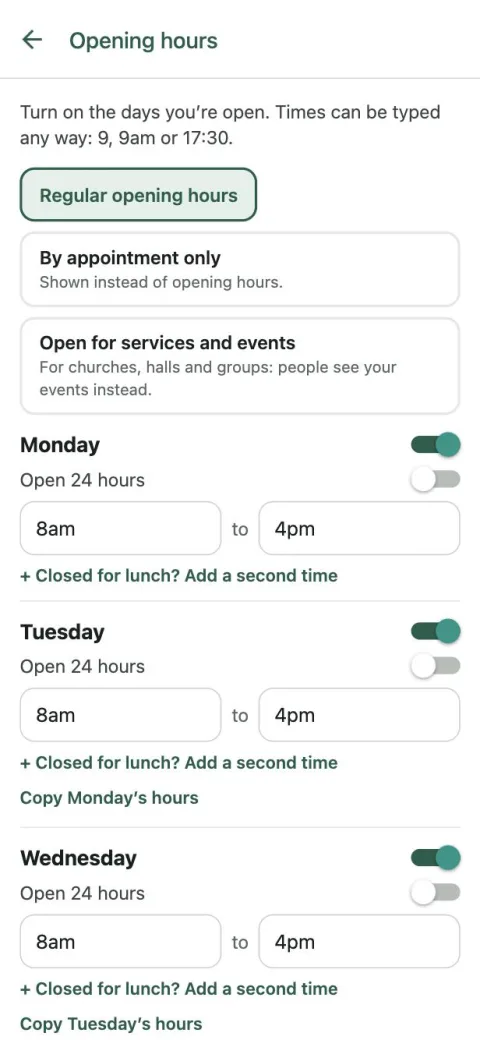
Tap Opening hours. Switch on each day you open and type the times any way you like: 9, 9am or 17:30 all work. Under each day, Copy takes the day before’s hours, so a regular week is a few taps. Closed for lunch? Add a second time on that day. Open all day and night? Turn on Open 24 hours. Open longer in summer? Turn on Different hours part of the year.
No regular hours? Choose By appointment only, or Open for services and events if you’re a church, hall or group, and people see your events instead.
Tap Save opening hours. They show straight away, and “Open now” uses them, so it’s worth getting them right.
6. Holidays and closures
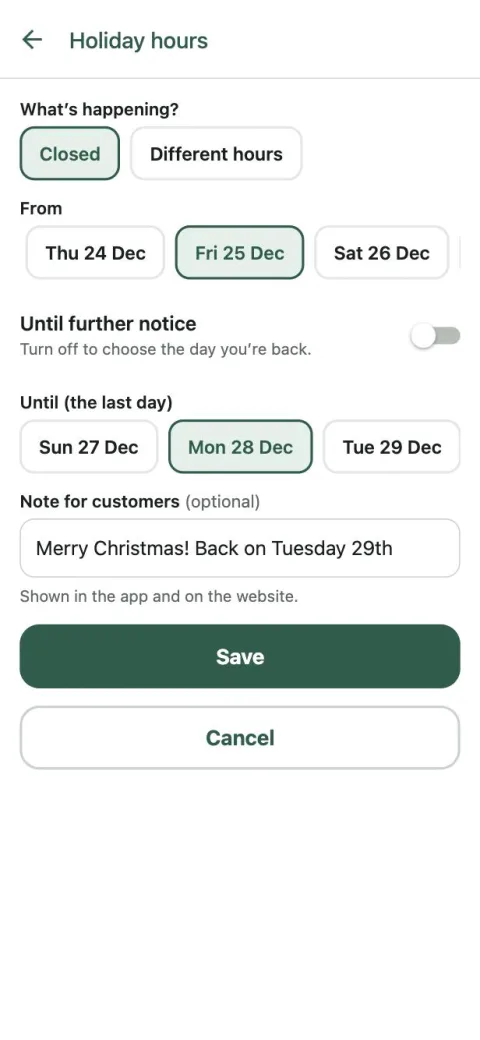
Tap Holiday hours and closures, then Add holiday hours or a closure. Choose Closed or Different hours, pick the dates (or Until further notice), and set the times for any days you’re open.
Add a short note if it helps, like “Back on Tuesday 29th”. From a week before, your listing warns people, and on the day it shows your holiday hours, so nobody walks to a locked door. Your normal hours come back by themselves afterwards.
Christmas is worth doing early. If you haven’t added anything for Christmas Day, Boxing Day or New Year’s Day, your listing says your hours may be different that day, and to check with you before going.